

What Is Make?
Make is a visual platform that lets you design, build, and automate anything, from simple tasks to complex workflows, in minutes. With Make, you can send information between Zenrows and thousands of apps. It’s fast and easy to use, visually intuitive, and requires zero coding expertise.Why Connect Zenrows with Make?
- Automate web data collection end-to-end: Connect Zenrows with 1,000+ apps in just a few clicks, no coding required. Pull web data from any site and route it directly to Google Sheets, CRMs, databases, or AI pipelines.
- Visualize your data workflows: Make lets you visually design and automate scenarios using a drag-and-drop interface. Connect Zenrows to any downstream app, set your scenario to run on a schedule or on demand, and watch it execute in real time whenever you need.
- Bypass anti-bot protection without code: Zenrows handles Cloudflare, DataDome, PerimeterX, and other bot protection systems automatically. Combined with Make’s scenario builder, you can scrape JS-rendered, bot-protected pages and deliver structured data to any destination, without managing infrastructure or writing a single line of code.
- Build faster and scale without limits: Design workflows with as many steps as you need, add as many URLs as your pipeline requires, and schedule scraping jobs to refresh your data at any interval. Debug your workflow in real time rather than searching through logs or code.
Available Zenrows Integrations
- Monitor your API usage: Returns Fetch usage information
- Make an API Call: Sends a GET, POST, or PUT request to a target URL via Fetch.
- Scraping a URL with Autoparse: Automates Fetch to auto-parse a target website’s HTML elements. It returns structured JSON data.
The autoparse option only works for some websites. Learn more about how it works in the autoparse FAQ.
- Scraping a URL with CSS Selectors: Automates data extraction from an array of CSS selectors.
Watch the Video Tutorial
Learn how to set up the Make ↔ Zenrows integration step-by-step by watching this video tutorial:Real-World End-to-End Integration Example
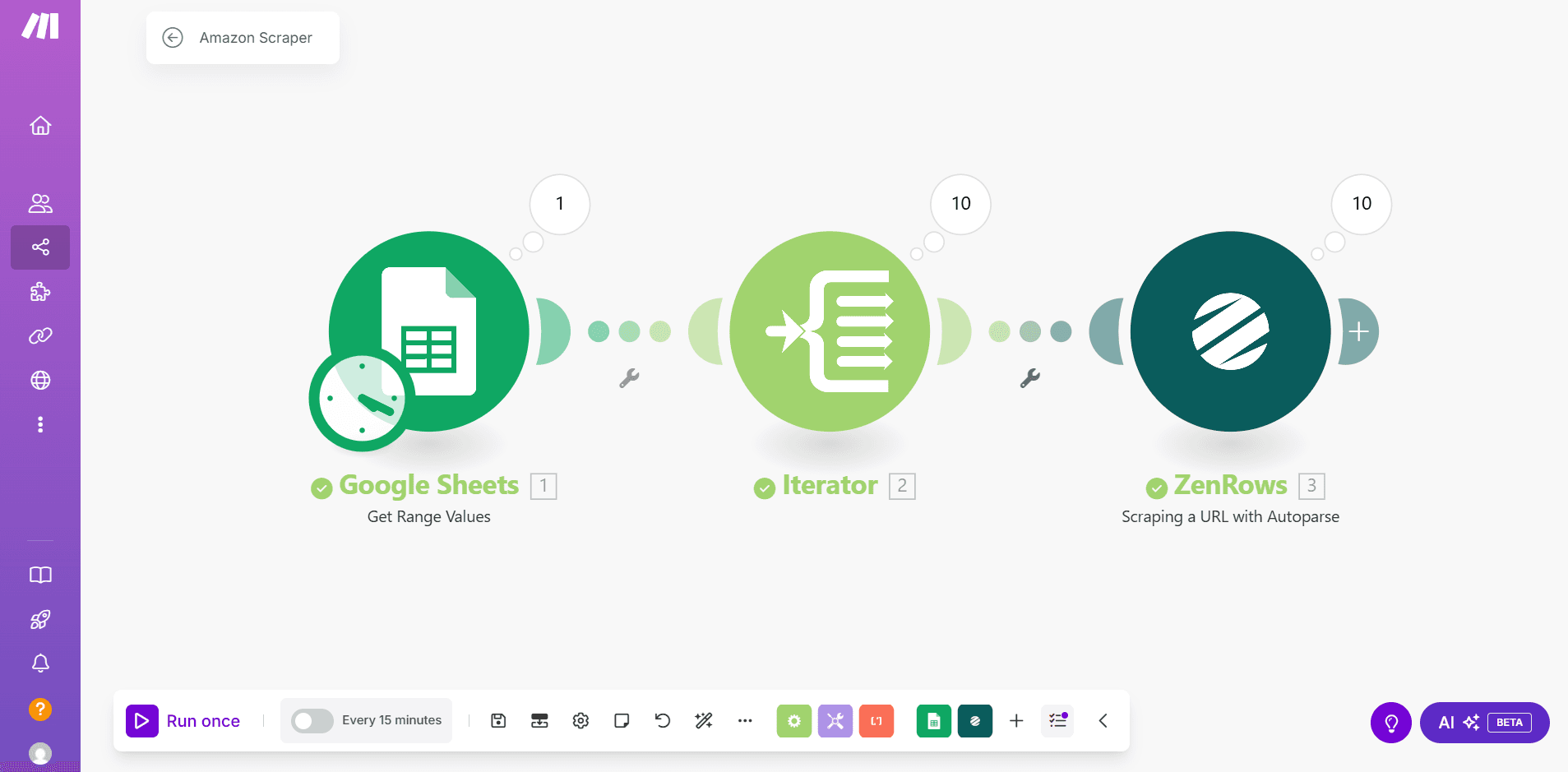
We’ll build an end-to-end Amazon scraping Scenario using Make and Zenrows with the following steps:- Pull target URLs from Google Sheets into Make’s Iterator
- Utilize Zenrows’ Scraping a URL with Autoparse integration option to extract data from URLs automatically
- Save the extracted data to Google Sheets
Step 1: Create a new Scenario on Make
- Log in to your account at https://make.com/
- Go to Scenarios on the left sidebar
- Click + Create a new scenario at the top right
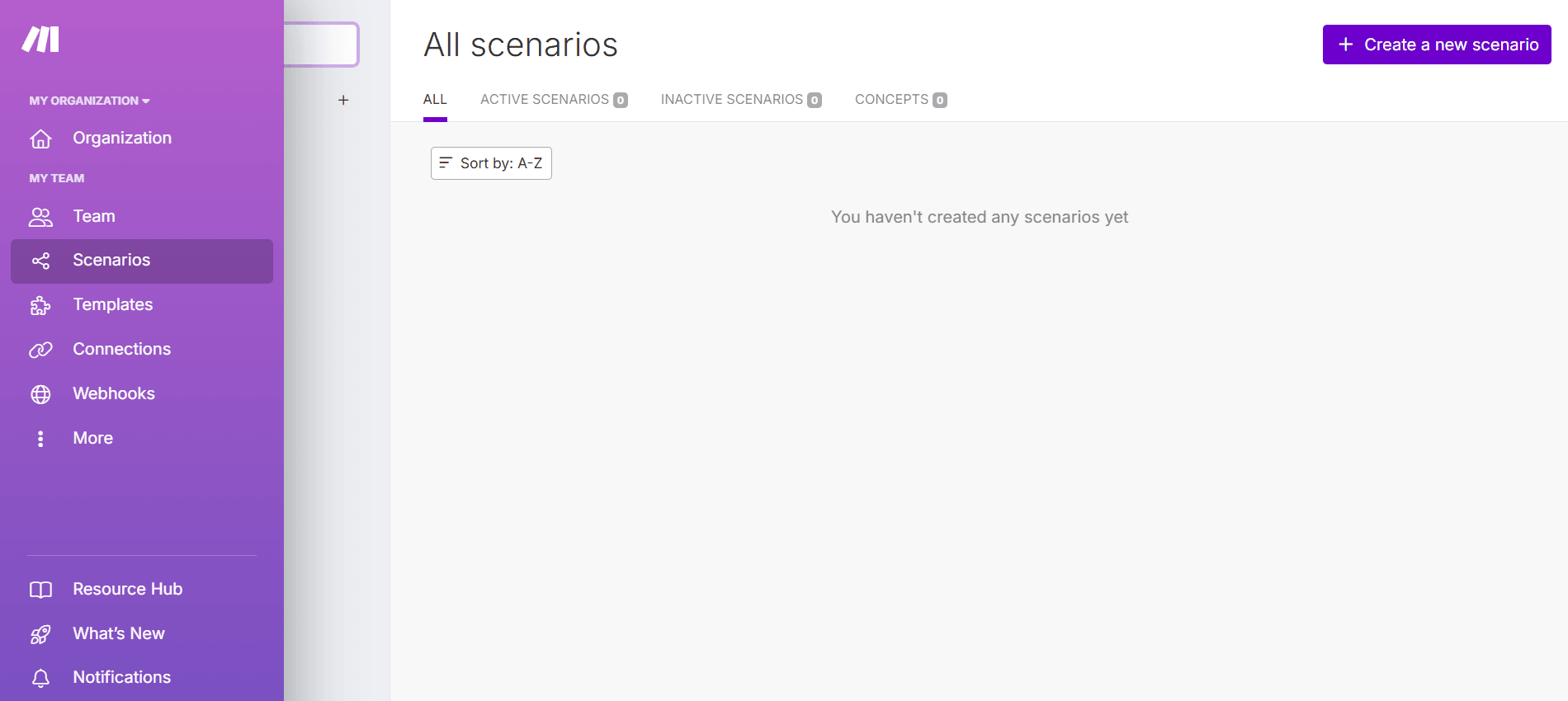
Step 2: Connect the Google Sheets containing the target URLs
- Enter your Scenario’s name at the top-left (e.g., Amazon Scraper)
- Click the
+icon in the middle of the screen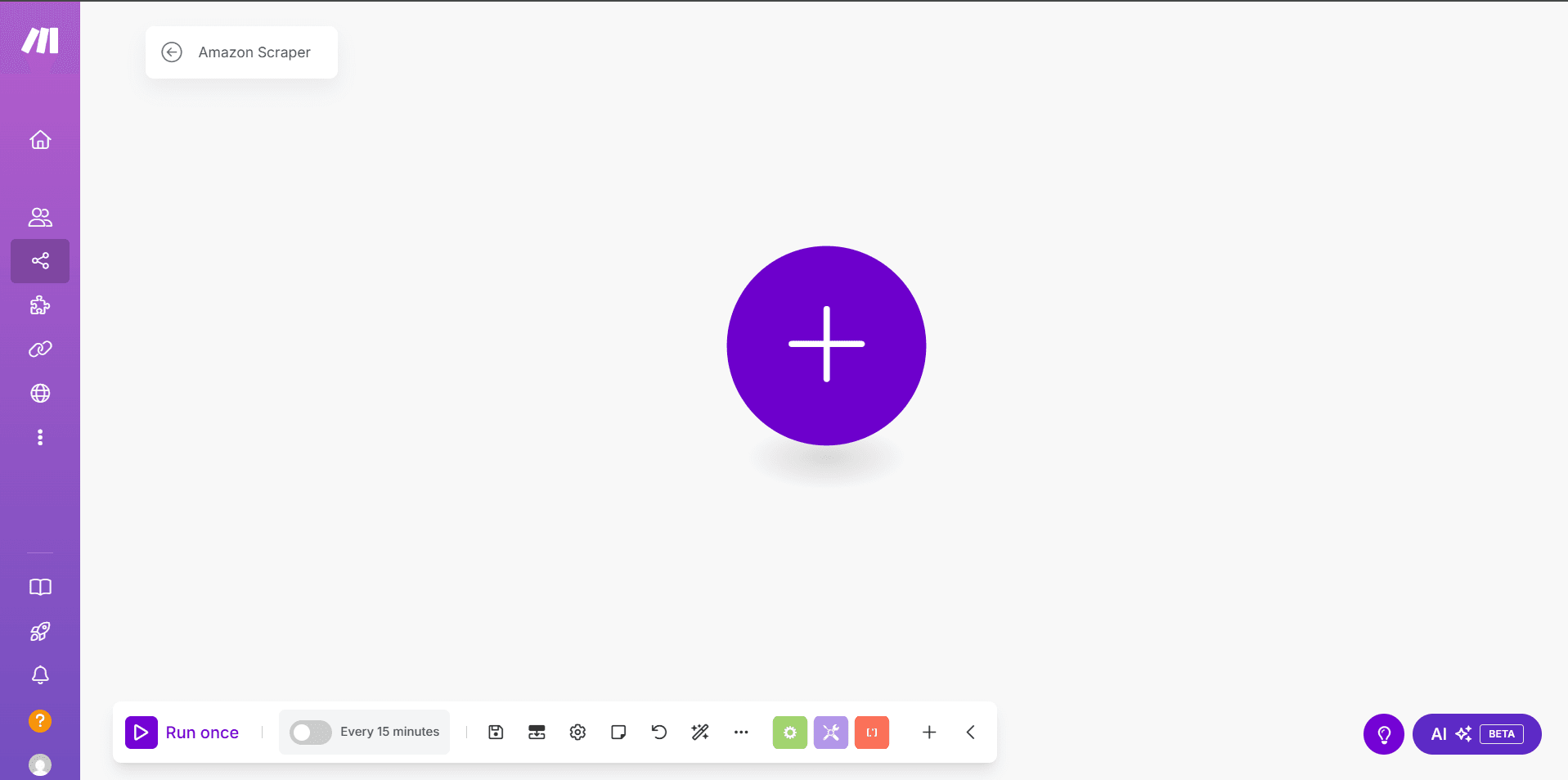
- Search and select Google Sheets from the modal
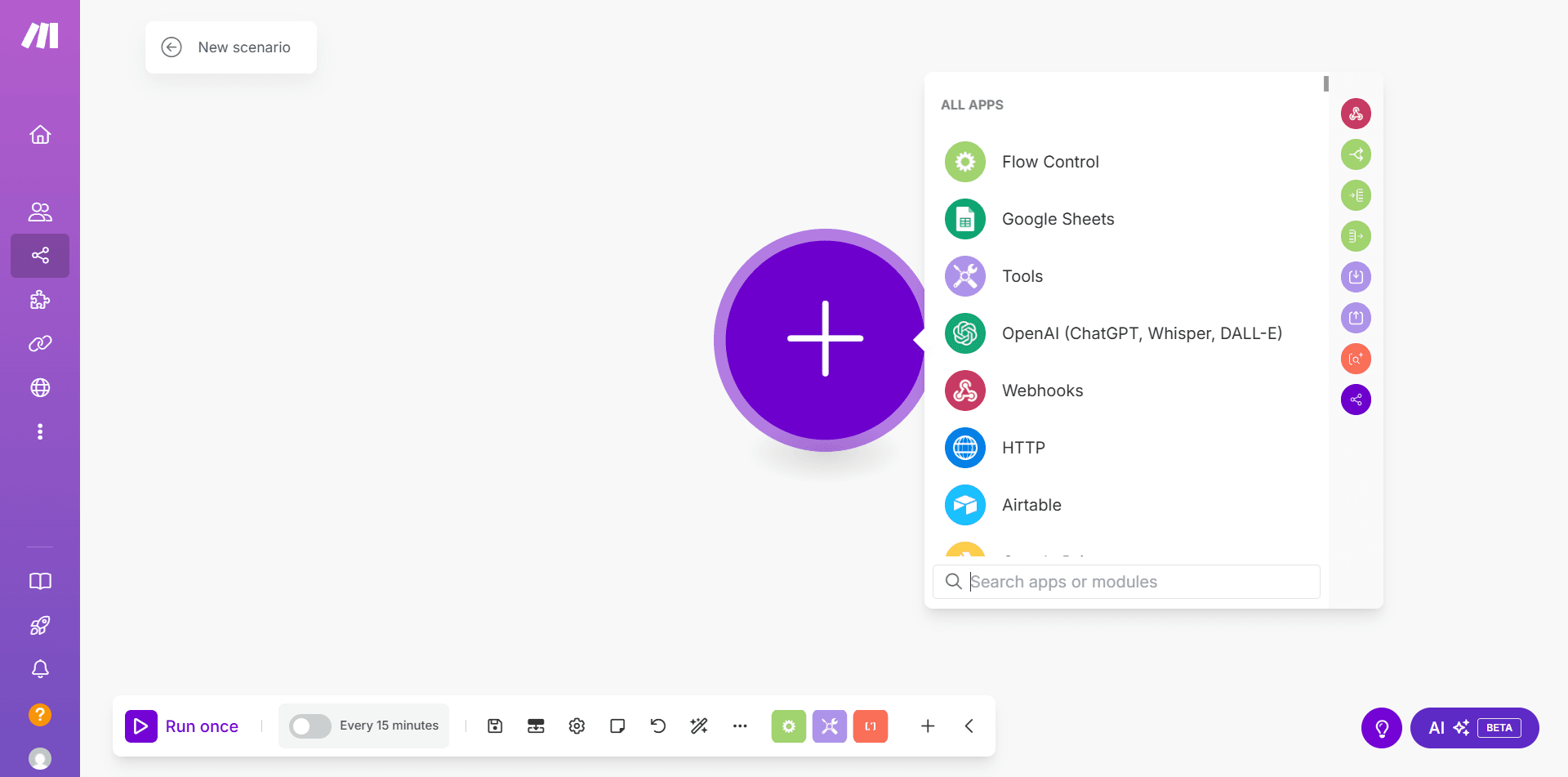
- Select Get Range Values from the options
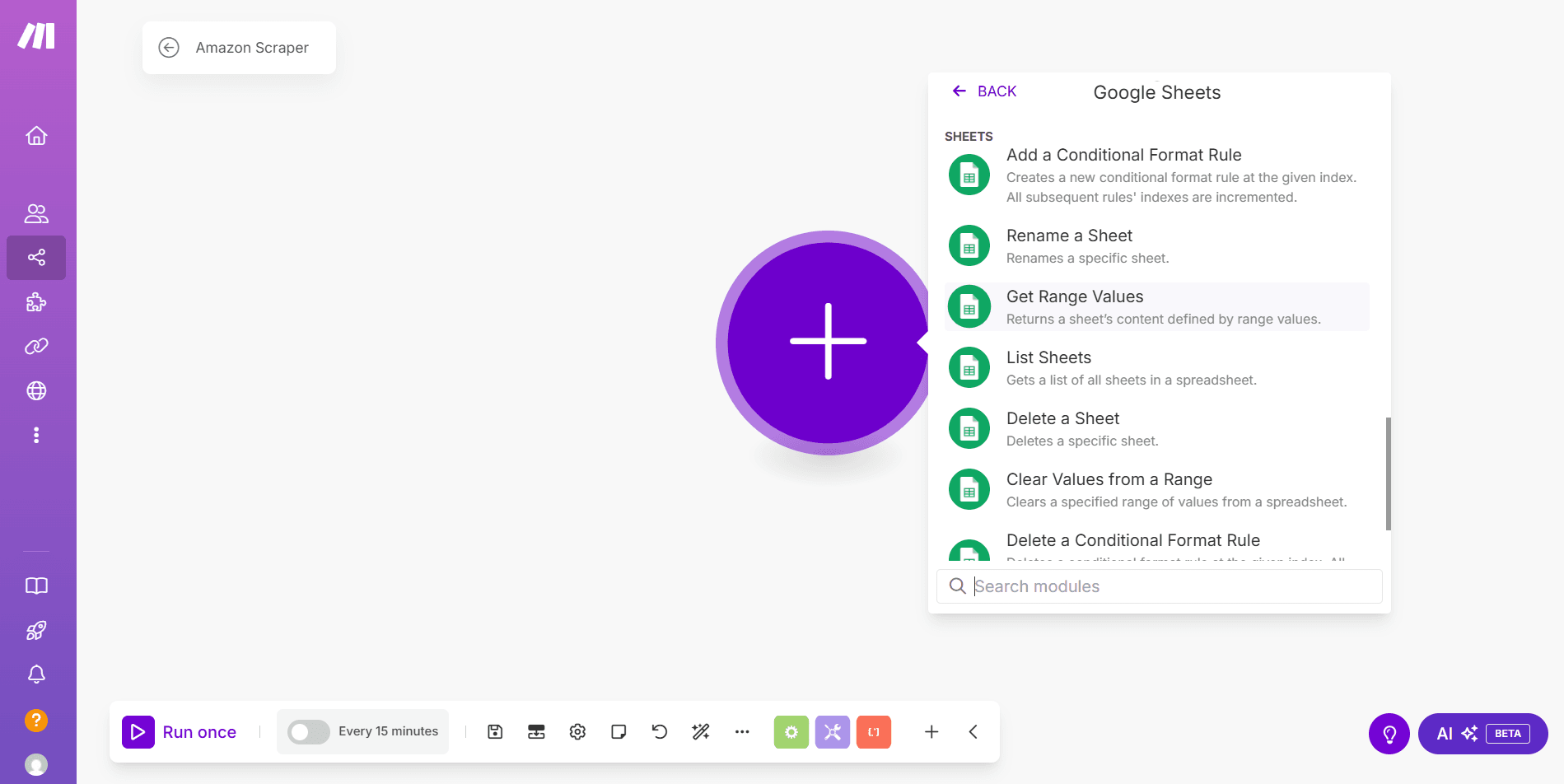
- If prompted, click Create a connection to link Make with your Google account
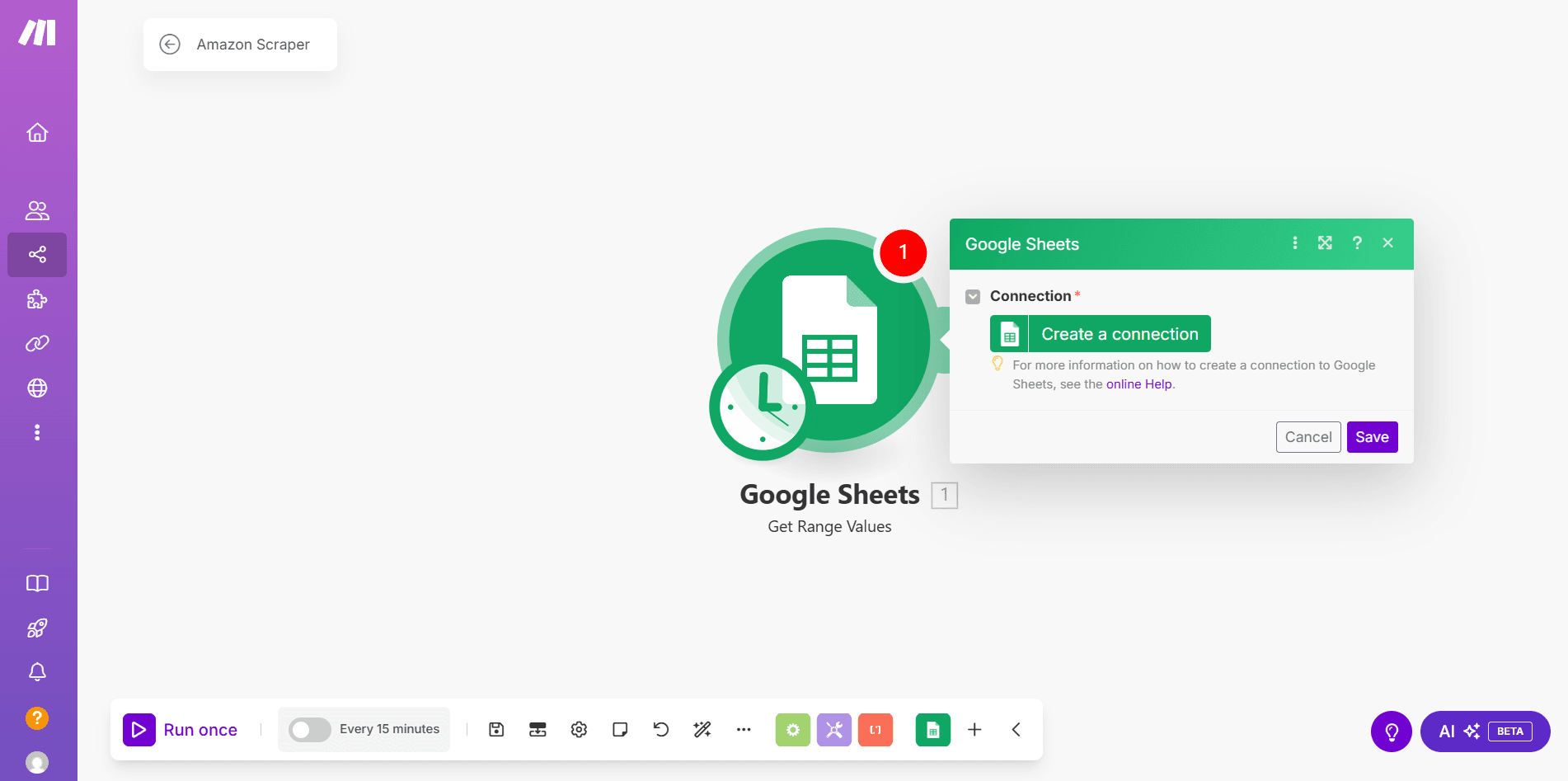
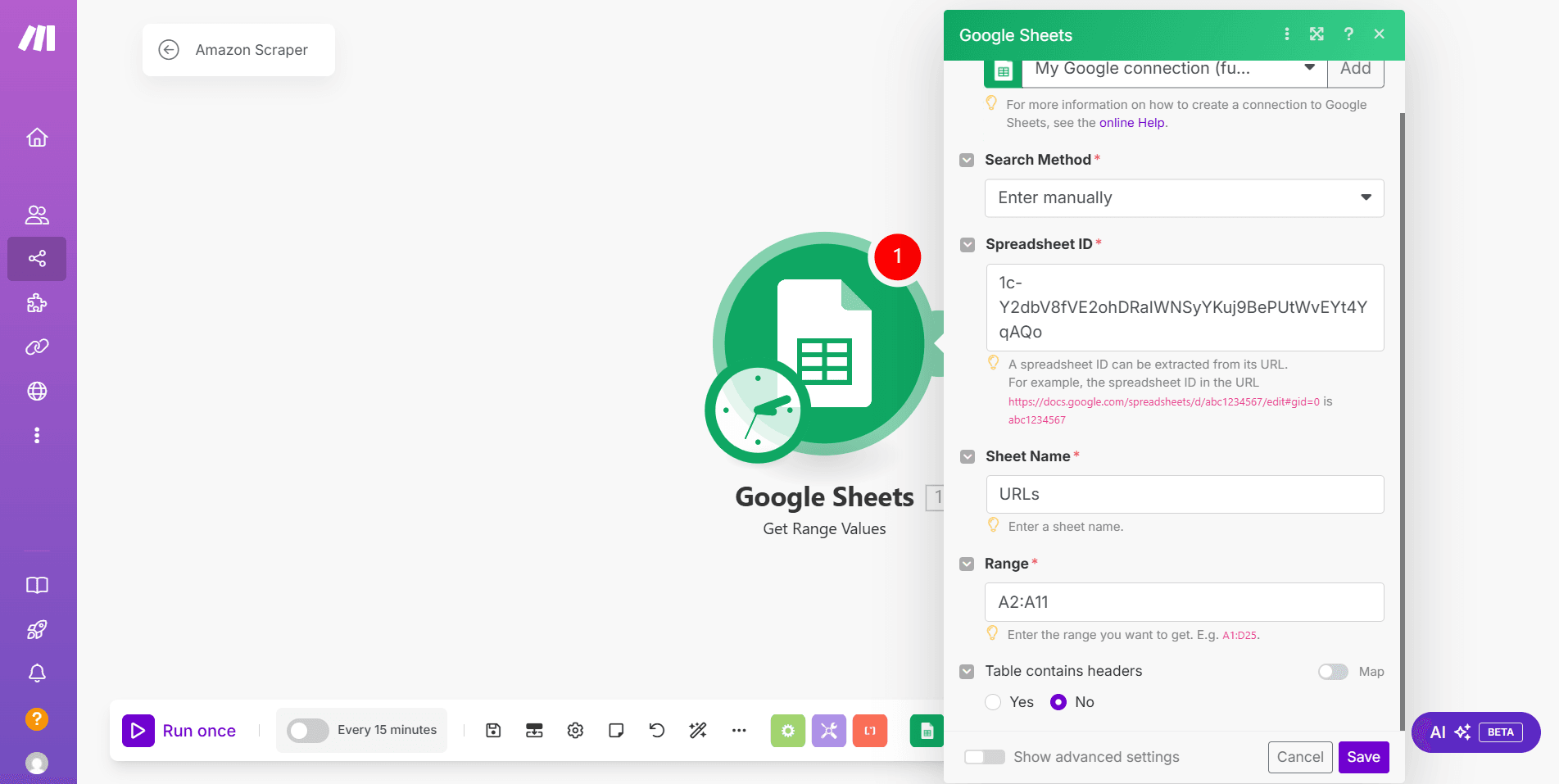
- Click the Search Method dropdown and select Enter manually
- Paste the Google Sheets ID in the Spreadsheet ID field
- Enter the sheet’s name in the Sheet Name field
- Provide the range of cells containing the target URLs in the Range field (e.g., A2:A11)
- Click Save
Step 3: Load the Target URLs into an Iterator
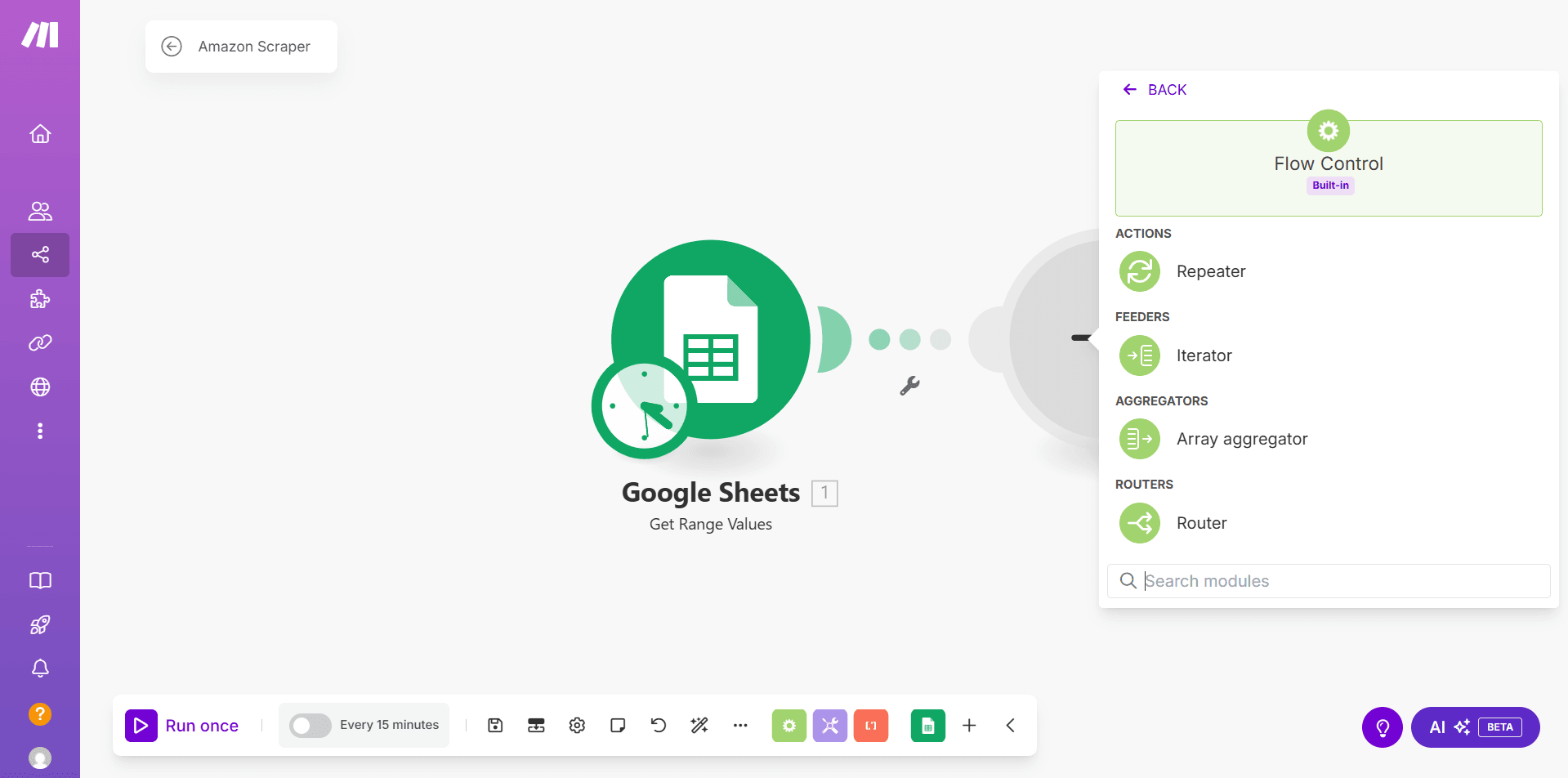
- Click
+next to the Google Sheets module to create a new connection - Search and select Flow Control, then click Iterator
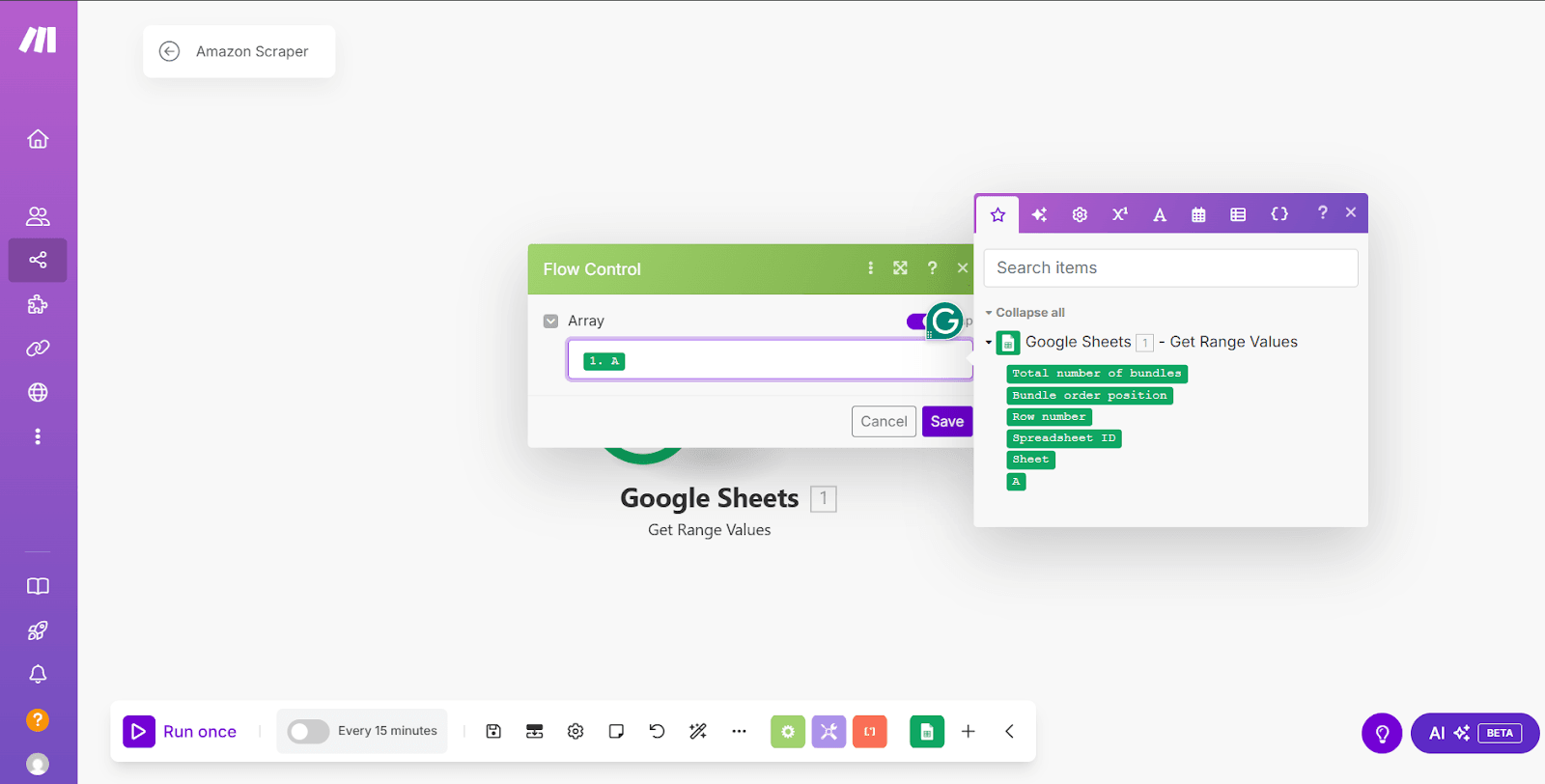
- Place your cursor in the Array field and select the column containing the target URLs (i.e., A) from the integrated Google Sheets
- Click Save
Step 4: Connect Zenrows with the Make workflow
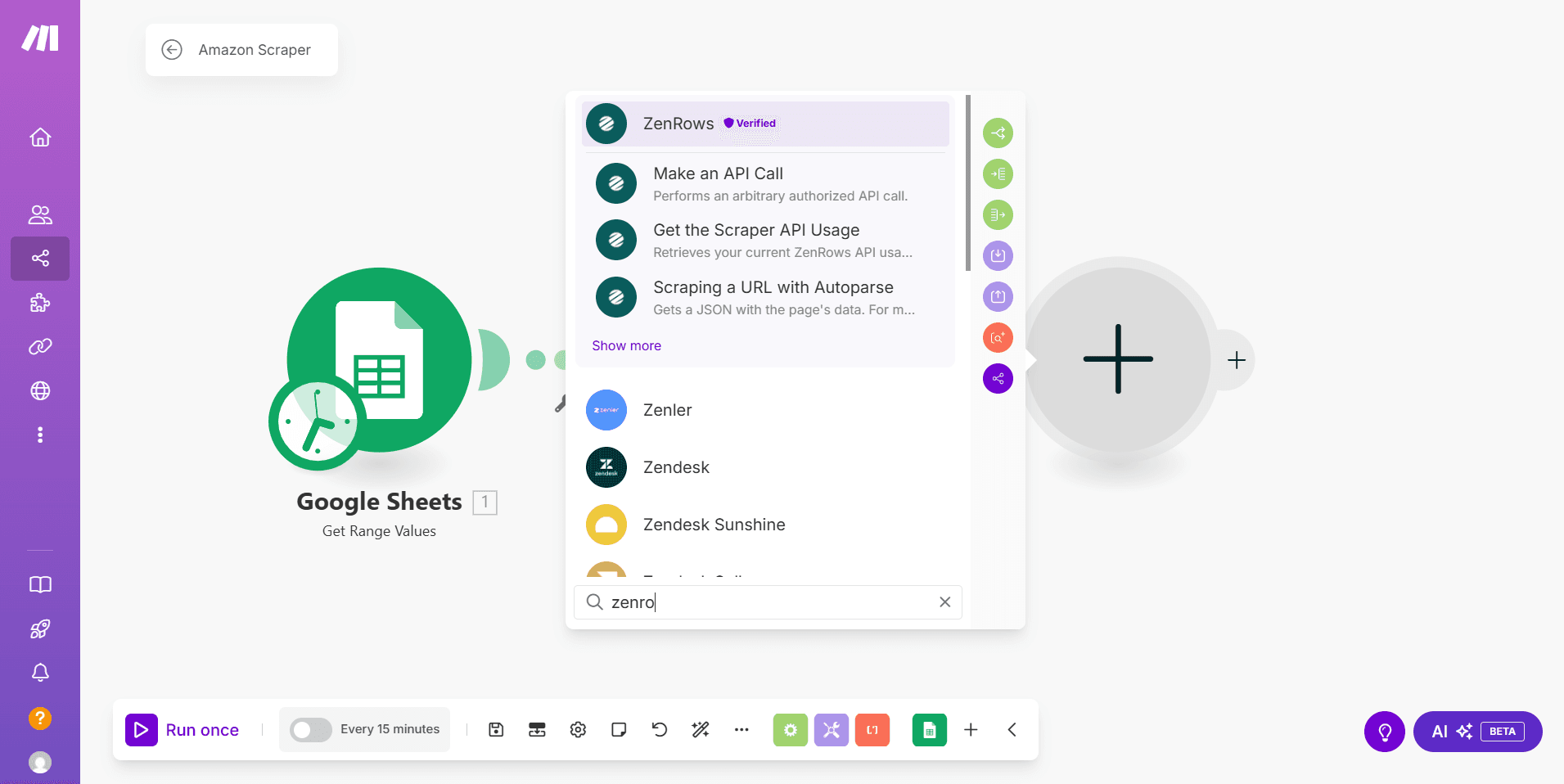
- Click the
+icon - Search and select Zenrows
- Click Scrape a URL with Autoparse
- Click Create a Connection
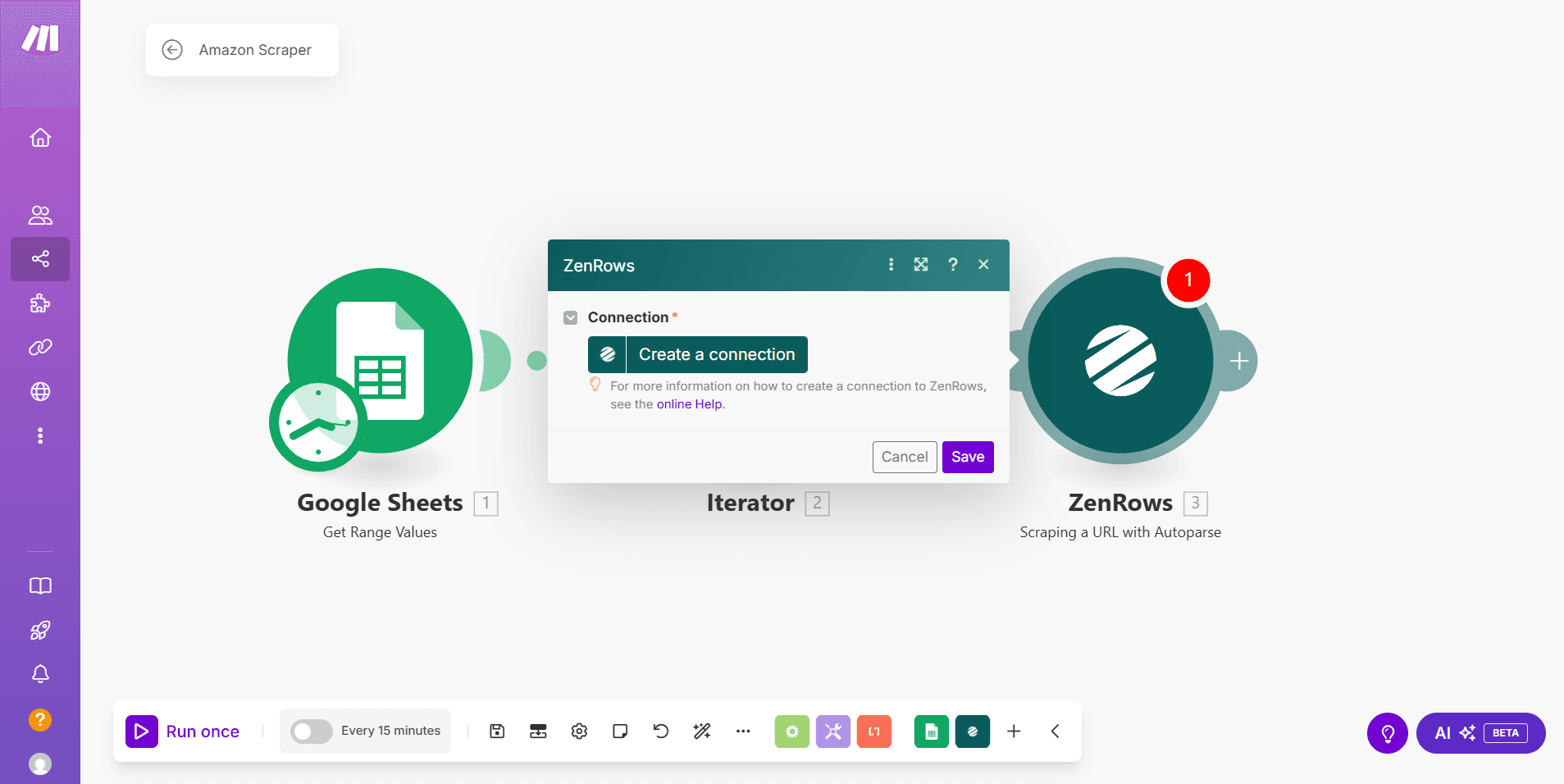
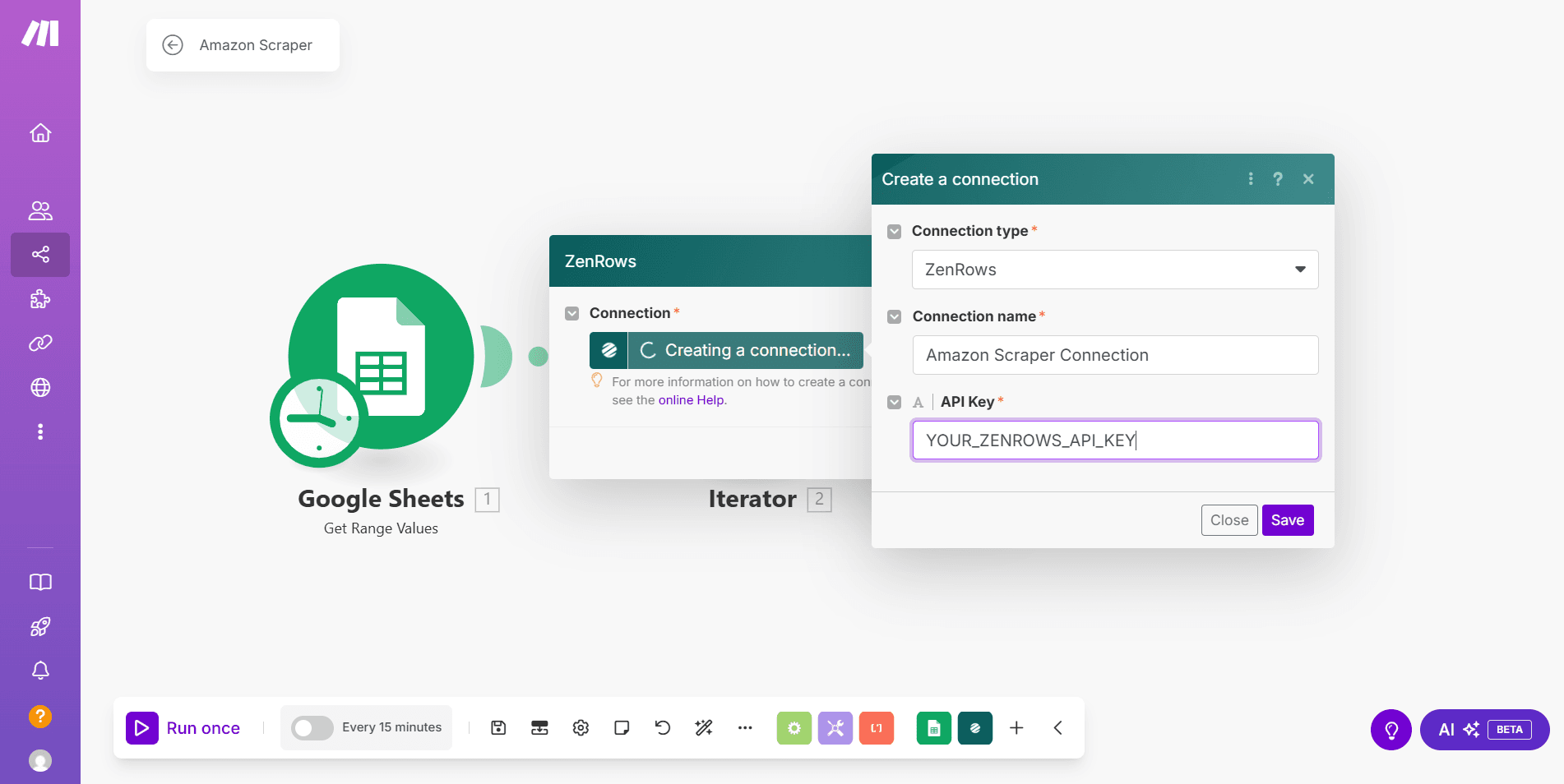
- Under Connection type, select Zenrows
- Enter a connection name in the Connection name field
- Provide your Zenrows API key in the API Key field
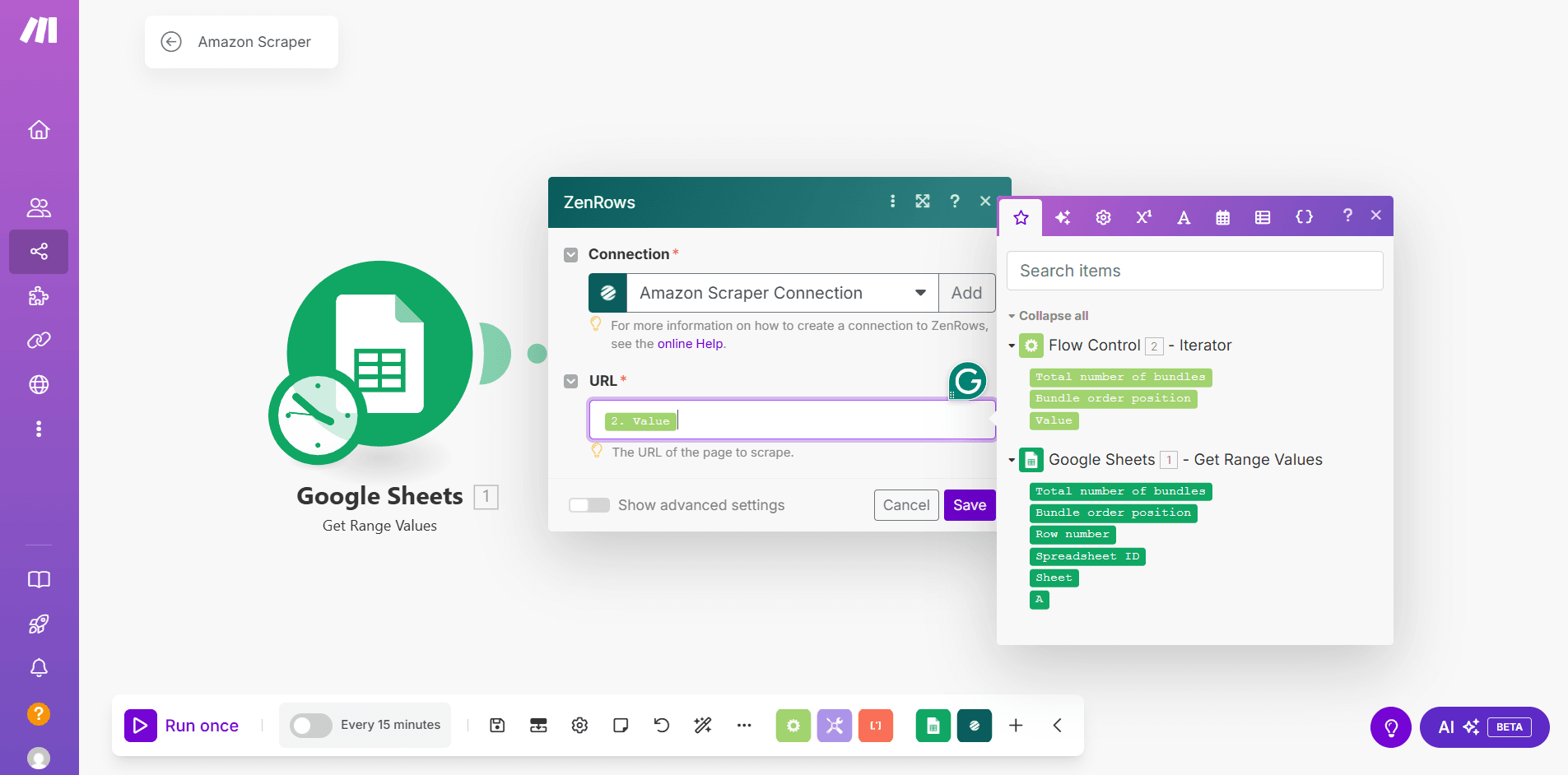
- Click Save
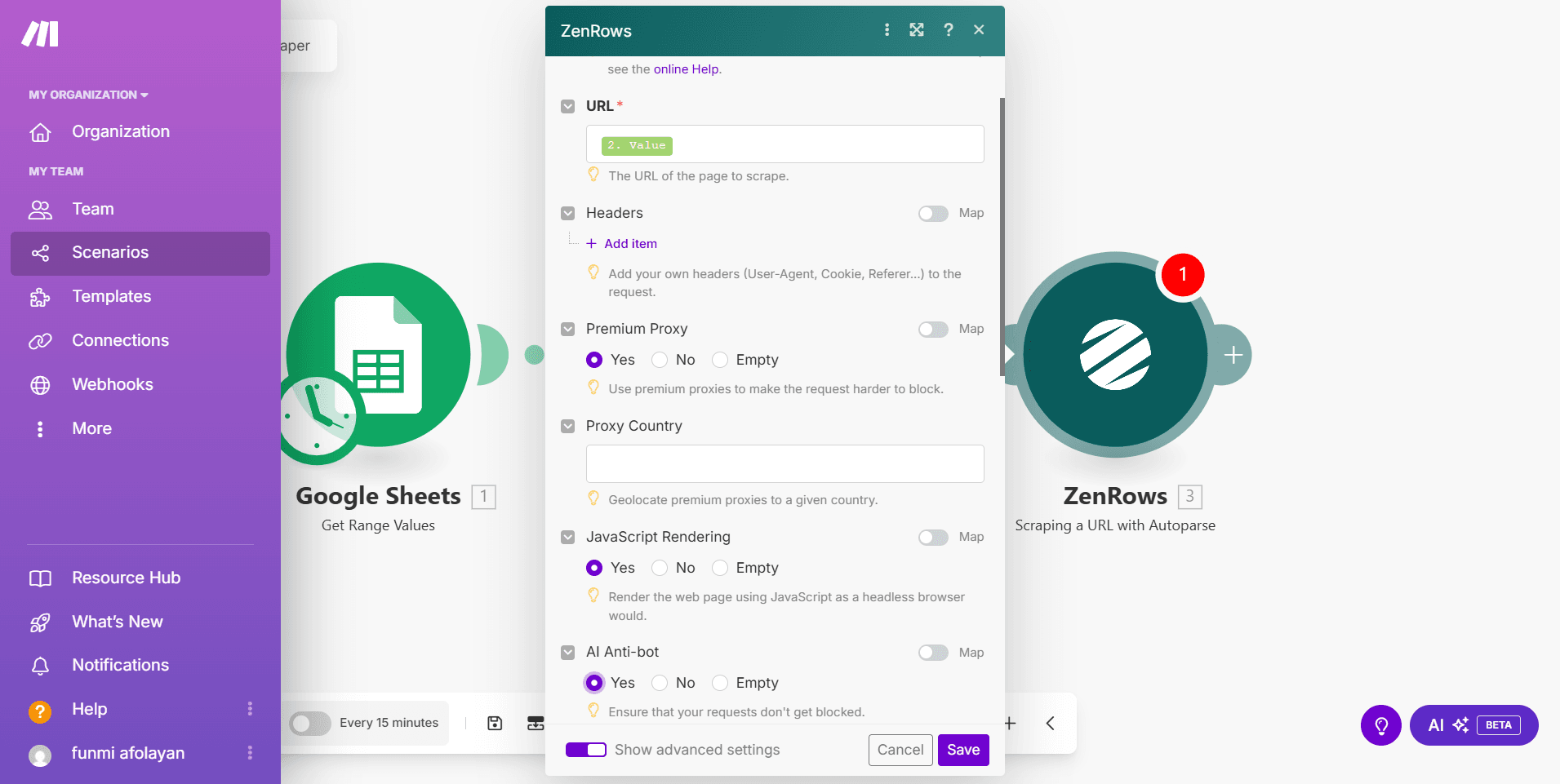
- Place your cursor in the URL field, then select Value from the Flow Control option in the modal box
- Click Show advanced settings
- Select Yes for Premium Proxy and JavaScript Rendering
- Click Save
Step 5: Store the scraped data in a Google Sheets
- Click Run once in the lower left corner to scrape data from the URLs
- Add another named sheet (e.g., Products) to the connected Google Sheets. Include the following columns in the new sheet:
- Name
- Rating Value
- Review Count
- Price (USD)
- Out of Stock
- Click the
+icon to add another module. Then, select Google Sheets. - Select Add a row
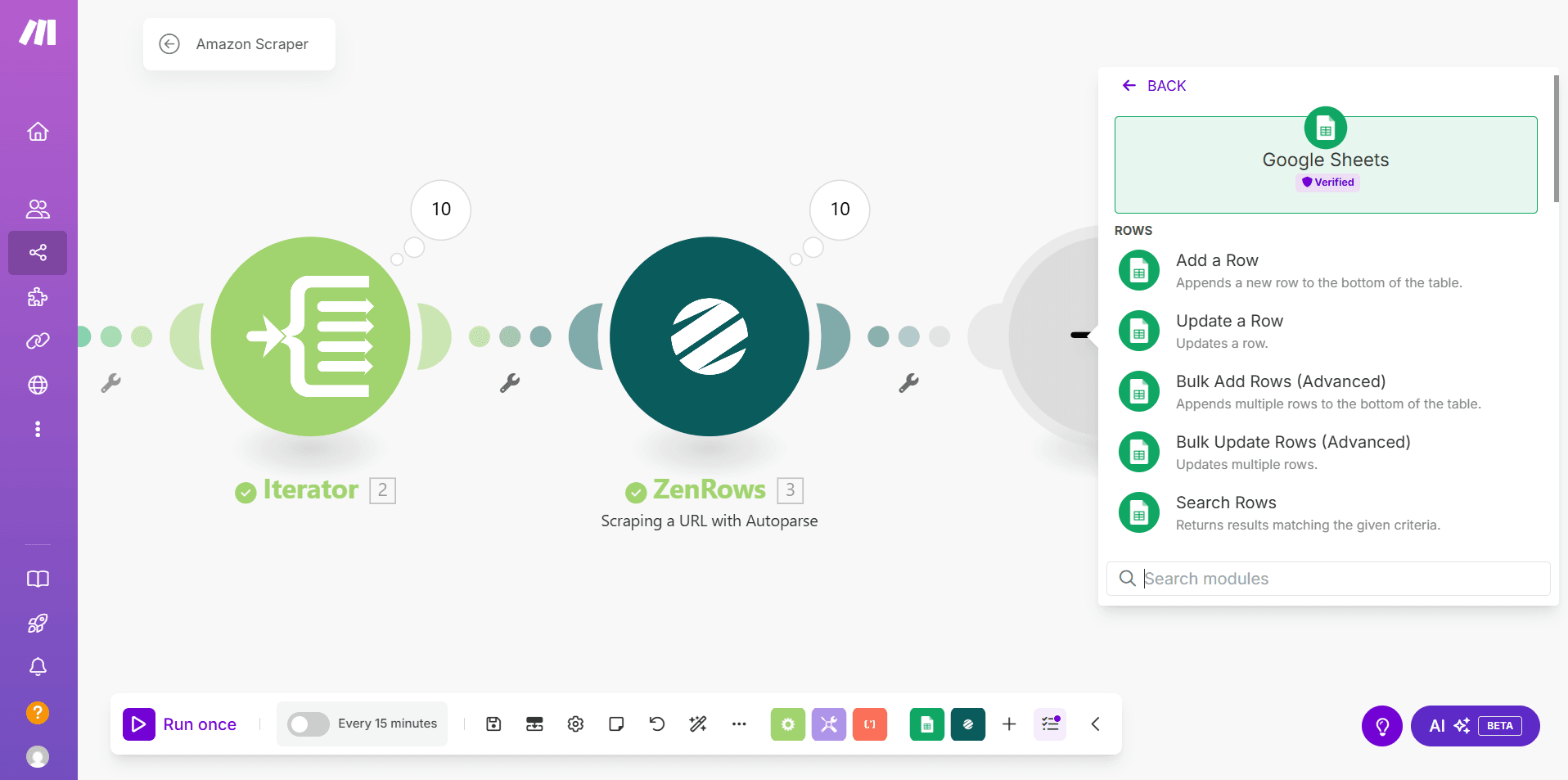
- Select Enter manually from the Search Method dropdown ⇒ enter the Spreadsheet ID and Sheet Name.
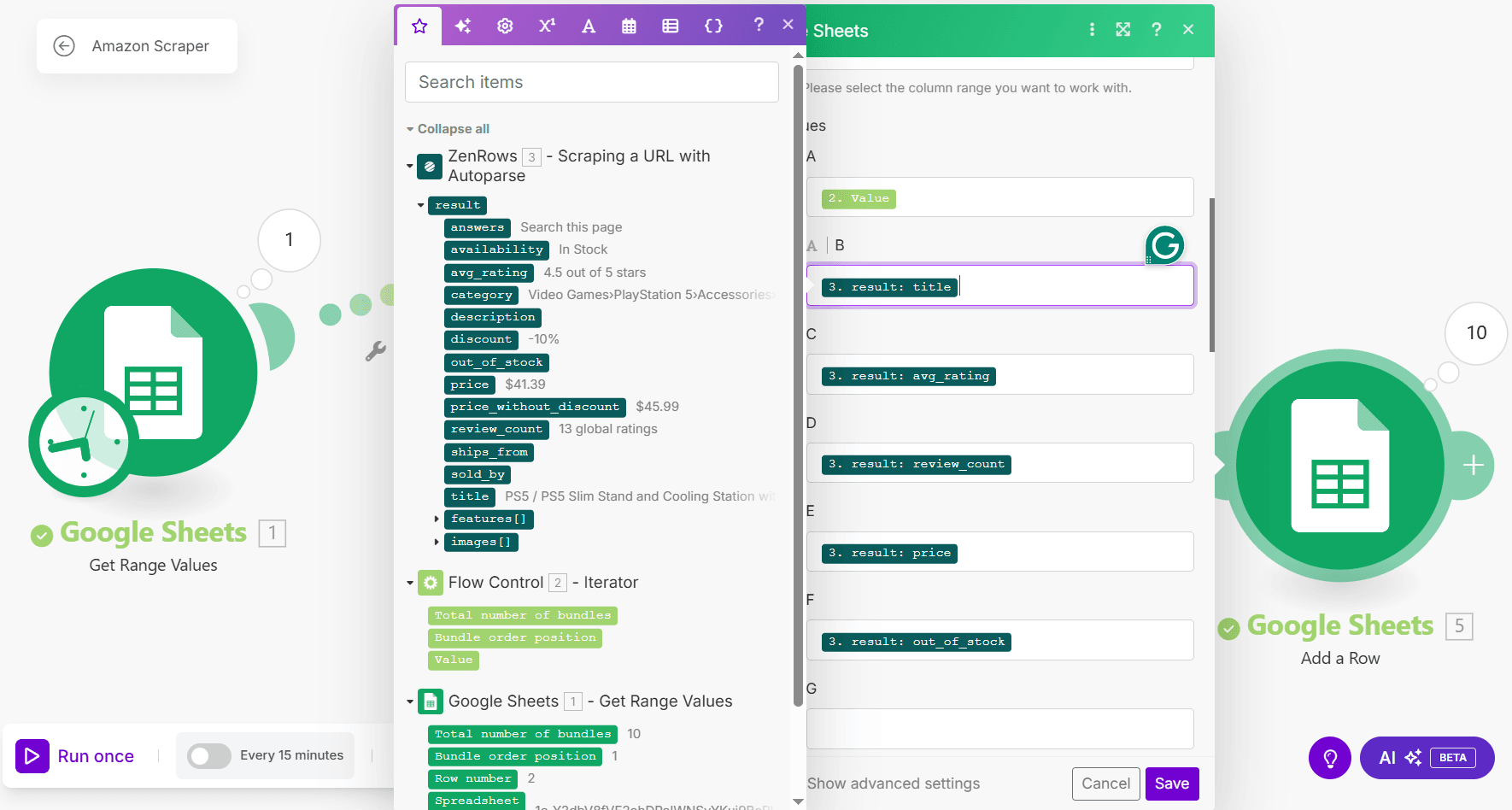
- Under Column Range, select A-Z. Then, map the columns using the data extracted from Zenrows.
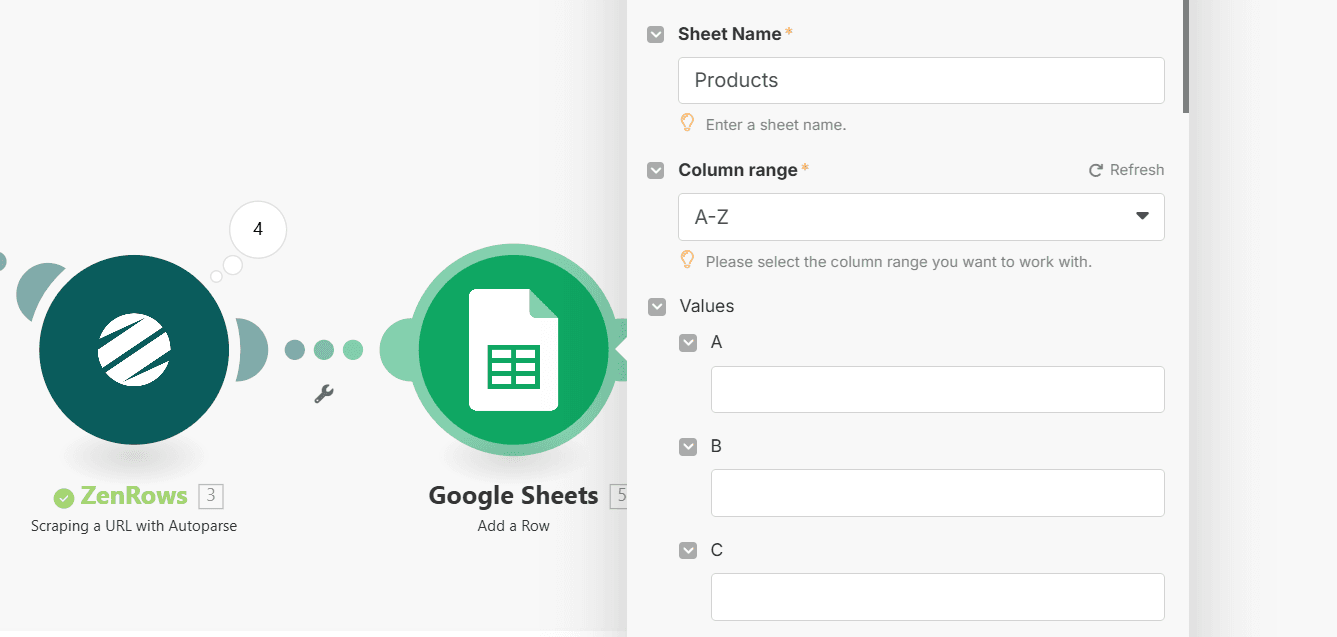
- Place your cursor in each column field and map it with the extracted data field as follows:
- A =
Value(from the Iterator) - B =
title - C =
avg_rating - D =
review_count - E =
price - F =
out_of_stock
- A =
- Click Save
Step 6: Run the Make Scenario and Validate the Extraction
Click Run once in the lower-left corner of the screen. The workflow runs iteratively for each URL in the connected Google Sheets. The workflow scrapes the data into the Products sheet as shown: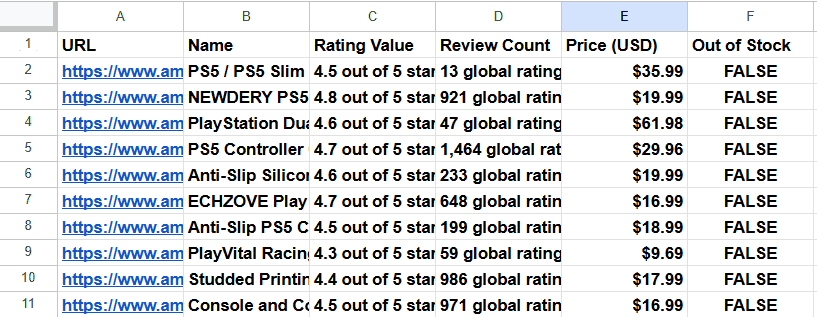 Congratulations! You’ve successfully integrated Zenrows with Make and automated your web scraping workflow.
Zenrows Configuration Options
Zenrows supports the following configuration options on Make:Troubleshooting
Issue: The workflow returns incomplete data
Solution: Ensure that JavaScript Rendering and Premium Proxy are enabled in the Zenrows configuration.Issue: [400] Error with internal code ‘REQS004’
Solution 1: Double-check the target URL and ensure it’s not malformed or missing essential query strings. Solution 2: If using the CSS selector integration, ensure the extractor parameter is a valid JSON array of objects (e.g.,[{"title":"#productTitle", "price": ".a-price-whole"}]).
Issue: Failed request or 401 unauthorized response
Solution 1: Ensure you supply your Zenrows API key. Solution 2: Double-check to ensure you’ve provided the correct Zenrows API key.Issue: The Google Sheets module cannot find the spreadsheet
Solution: Double-check the Spreadsheet ID and ensure the Google Sheets API is enabled for your account.Frequently Asked Questions (FAQ)
Can I use My Existing Zenrows API Key with Make?
Can I use My Existing Zenrows API Key with Make?
Yes. You don’t need a separate Zenrows API key for Make. You need to provide your existing API key while connecting Make with Zenrows.
Can I Scrape with CSS Selectors on Make?
Can I Scrape with CSS Selectors on Make?
Make supports Zenrows CSS selector integration. It allows you to manually pass the target website’s CSS selectors as an array.
Can I use the autoparse integration for all websites?
Can I use the autoparse integration for all websites?
The autoparse integration isn’t available for all websites. If you use the Scraping a URL with Autoparse integration for an unsupported website, the scraper will return empty or incomplete data or an error. Visit the Zenrows web scraper page to view the supported websites.
How do I get started with Make?
- Sign up for Make: a free account is available forever.
- Create a new scenario by connecting app modules and selecting triggers and actions.
- Run a quick test to verify the scenario works correctly.
- Set the scenario to run on a schedule and let it run automatically.