

What Is 2Captcha
2Captcha is a CAPTCHA-solving service that employs humans to solve various types of CAPTCHA challenges. Here’s how 2Captcha works:- The scraper submits the CAPTCHA challenge as a unique key (e.g., sitekey for reCAPTCHA) via 2Captcha’s API.
- A human solver receives and solves the CAPTCHA challenge manually.
- The human worker returns the CAPTCHA solution as a hashed token.
- The scraper supplies the solution token to the site and solves the challenge.
Integrating 2Captcha With Fetch
Fetch automatically bypasses website protections, but you should combine it with 2Captcha for interactive or form-based CAPTCHAs. This approach requires minimal code changes and helps handle unexpected blocks.Step 1: Set up 2Captcha on Zenrows
- Log in to your 2Captcha dashboard and copy your API key.
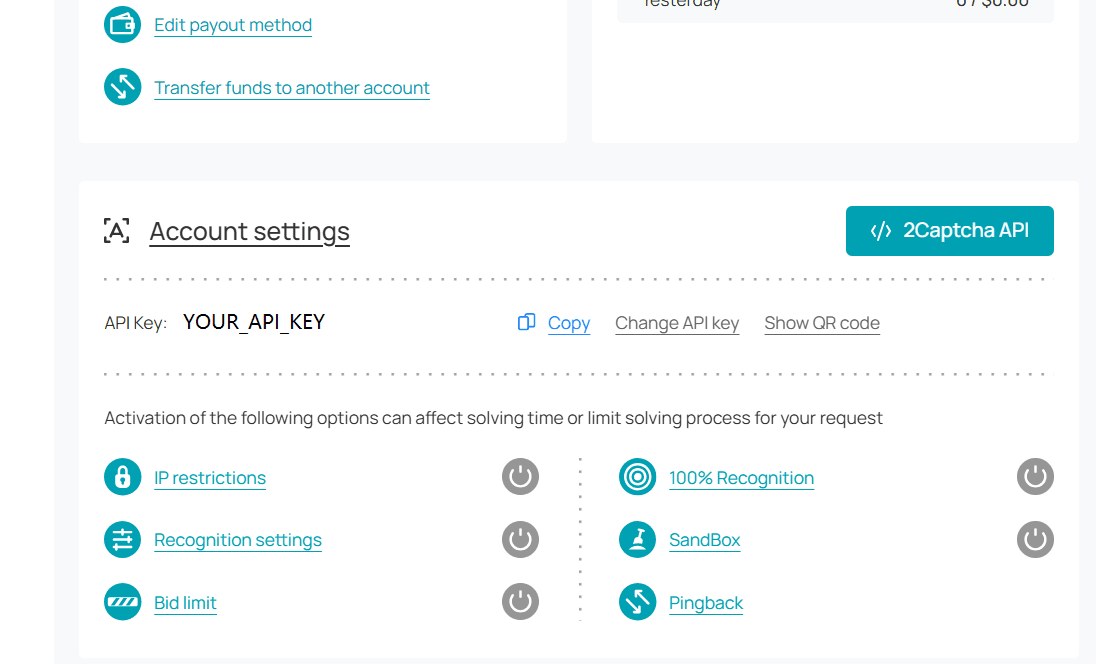
- Go to the Integrations Page in your Zenrows account and click on
Integrations. - Click
Manageon the 2Captcha card.
- Enter your 2Captcha API key and click
Save.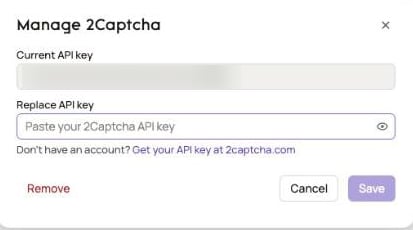
Step 2: Integrate 2Captcha in your scraping request
After adding the 2Captcha Zenrows integration, you need to specify its usage in your Fetch request via thejs_instructions parameter. Zenrows handles all communication between your script and 2Captcha.
The js_instructions parameter accepts a solve_captcha option that specifies which CAPTCHA type you want to solve.
Zenrows’s Fetch supports these CAPTCHA types for 2Captcha integration:
recaptcha: Google reCAPTCHA series, including invisible CAPTCHAs that don’t require user interaction.cloudflare_turnstile: Cloudflare Turnstile CAPTCHAs are typically found on forms and interactive elements.
For more information on the available instructions, check the JavaScript Instructions Documentation page.
js_instructions in your Zenrows request. In this example, the script waits for 3 seconds, solves the reCAPTCHA challenge using 2Captcha, waits 3 seconds for processing, clicks the submit button, and then waits for the success message to be present:
Python
The CSS selectors provided in this example (
._successMessage_1ndnh_1, button[type='submit']) are specific to the page used in this guide. Selectors may vary across websites. For guidance on customizing selectors, refer to the CSS Extractor documentation. If you’re having trouble, the Advanced CSS Selectors Troubleshooting Guide can help resolve common issues.Step 3: Confirm you solved the CAPTCHA
You can confirm that the CAPTCHA was successfully solved by checking the response from both thejs_instructions and css_extractor:
Complete Example
Here’s the full working code:Python
Response
The
json_response parameter is used here for debugging purposes. For production use, you can parse the response.text with a parser like BeautifulSoup since the request returns the HTML content that was previously locked behind the CAPTCHA.Integrating 2Captcha With the Zenrows Browser Sessions
The Zenrows Browser Sessions doesn’t include direct 2Captcha integration, but you can achieve this using the 2Captcha SDK. Here’s how to set it up using Playwright with Browser Sessions in Python.Step 1: Install the 2Captcha SDK
First, install the 2Captcha SDK:Step 2: Connect to 2Captcha
Import the necessary libraries and create a connection to 2Captcha using your API key:Python
Step 3: Connect to Browser Sessions and obtain the CAPTCHA Token
Connect to Browser Sessions, navigate to your target page, and extract the reCAPTCHA sitekey (a unique identifier for the CAPTCHA):Python
Step 4: Solve the CAPTCHA
When a user solves a CAPTCHA, the solution token gets placed in a hidden input field. You need to simulate this process by injecting the token into the appropriate field:Python
Step 5: Confirm you solved the CAPTCHA
After applying the CAPTCHA solution, you can proceed with your scraping tasks. Let’s verify the solution worked by clicking the submit button and checking the response:Python
The CSS selectors provided in this example (
._successMessage_1ndnh_1, ._alertBody_bl73y_16) are specific to the page used in this guide. Selectors may vary across websites. For guidance on customizing selectors, refer to the CSS Extractor documentation. If you’re having trouble, the Advanced CSS Selectors Troubleshooting Guide can help resolve common issues.asyncio:
Python
Complete Example
Here’s the full working code:Python
Conclusion
By integrating 2Captcha with Zenrows, you can reliably handle even the toughest CAPTCHAs and keep your scraping workflows running smoothly. Whether you use Fetch or Browser Sessions, this setup helps you automate CAPTCHA solving and reduce manual effort.Frequently Asked Questions (FAQ)
Why Use 2Captcha With Zenrows?
Why Use 2Captcha With Zenrows?
At a success rate of 99.93%, Zenrows bypasses the CAPTCHAs and other anti-bot measures commonly encountered during web scraping. However, interactive or in-page CAPTCHAs, such as those tied to form fields, may occasionally appear after bypassing the primary CAPTCHA. While this is rare, integrating 2Captcha provides an additional layer of stealth, ensuring even higher reliability and enhancing the already impressive 99.93% success rate.
Does Fetch Integration Support All CAPTCHA Types?
Does Fetch Integration Support All CAPTCHA Types?
Zenrows, when integrated with 2Captcha, natively supports solving reCAPTCHA and Cloudflare Turnstile, two of the most common CAPTCHA types.
Does Zenrows return CAPTCHA tokens?
Does Zenrows return CAPTCHA tokens?
No, Zenrows does not return CAPTCHA tokens.