Documentation Index
Fetch the complete documentation index at: https://docs.zenrows.com/llms.txt
Use this file to discover all available pages before exploring further.
ZenRows® provides multiple ways to extract and format data from web pages. You can use CSS Selectors for direct JSON extraction, apply output filters for data transformation, or retrieve raw HTML for custom processing.
This guide covers three main approaches to data extraction with ZenRows.
Using CSS Selectors
Using Output Filters
Using External Libraries
CSS Selectors are a query language for selecting HTML elements. When you enable the css_extractor parameter, ZenRows returns structured JSON data instead of raw HTML.Let’s say you want to scrape the title from the ScrapingCourse eCommerce page. The title is contained in an h1 tag.To extract it, send the css_extractor parameter with the value {"title": "h1"}. Make sure the parameter is properly encoded!import requests
api_key = "YOUR_ZENROWS_API_KEY"
url = "https://www.scrapingcourse.com/ecommerce/"
css_extractor = {"title": "h1"}
response = requests.get(
"https://api.zenrows.com/v1/",
params={
"apikey": api_key,
"url": url,
"css_extractor": css_extractor
}
)
print(response.json())
This code sends a request to ZenRows with the CSS selector h1 mapped to the key “title”. ZenRows extracts the content from the first h1 element and returns it as structured JSON data.Now let’s extract multiple elements. Add the product names using the selector .product-name:import requests
api_key = "YOUR_ZENROWS_API_KEY"
url = "https://www.scrapingcourse.com/ecommerce/"
css_extractor = {
"title": "h1",
"products": ".product-name"
}
response = requests.get(
"https://api.zenrows.com/v1/",
params={
"apikey": api_key,
"url": url,
"css_extractor": css_extractor
}
)
print(response.json())
This request extracts both the page title and all product names. When a CSS selector matches multiple elements, ZenRows automatically returns them as an array.The response looks like this:{
"title": "E-commerce Products",
"products": [
"Product 1",
"Product 2",
"Product 3"
// ...
]
}
You might need product links to continue scraping individual product details. To extract the href attribute instead of text content, add @href to your selector.Let’s filter links to only include those starting with /product/:import requests
api_key = "YOUR_ZENROWS_API_KEY"
url = "https://www.scrapingcourse.com/ecommerce/"
css_extractor = {
"title": "h1",
"products": ".product-name",
"links": "a[href*='/product/'] @href"
}
response = requests.get(
"https://api.zenrows.com/v1/",
params={
"apikey": api_key,
"url": url,
"css_extractor": css_extractor
}
)
print(response.json())
The @href syntax tells ZenRows to extract the href attribute value instead of the element’s text content. The [href*='/product/'] part filters links to only include those containing /product/ in their href attribute.This returns:{
"title": "Shop",
"products": [
"Product 1",
"Product 2",
"Product 3"
// ...
],
"links": [
"/product/1",
"/product/2",
"/product/3"
// ...
]
}
The outputs parameter extracts predefined data types from scraped HTML. This allows you to efficiently retrieve only the data types you need, reducing processing time and focusing on relevant information.The parameter accepts a comma-separated list of filter names and returns results in structured JSON format.Use outputs=* to retrieve all available data types.
Get headings, links, and menu items to understand page structure:import requests
api_key = "YOUR_ZENROWS_API_KEY"
url = "https://www.scrapingcourse.com/ecommerce/"
response = requests.get(
"https://api.zenrows.com/v1/",
params={
"apikey": api_key,
"url": url,
"outputs": "headings,links,menus"
}
)
print(response.json())
This extracts heading text from h1 through h6 elements, URLs from a tags, and menu items from li elements inside menu tags.Get all images, videos, and audio files from a page:import requests
api_key = "YOUR_ZENROWS_API_KEY"
url = "https://www.scrapingcourse.com/ecommerce/"
response = requests.get(
"https://api.zenrows.com/v1/",
params={
"apikey": api_key,
"url": url,
"outputs": "images,videos,audios"
}
)
print(response.json())
This extracts image sources from img tags, video sources from source elements inside video tags, and audio sources from source elements inside audio tags. If you prefer using your favorite HTML parsing library, you can retrieve raw HTML from ZenRows and process it with tools like BeautifulSoup or Cheerio.Python with BeautifulSoup
# pip install requests beautifulsoup4
import requests
from bs4 import BeautifulSoup
zenrows_api_base = "https://api.zenrows.com/v1/?apikey=YOUR_ZENROWS_API_KEY"
url = "https://www.scrapingcourse.com/ecommerce/"
response = requests.get(zenrows_api_base, params={'url': url})
soup = BeautifulSoup(response.text, "html.parser")
title = soup.find("h1").text
products = [product.text for product in soup.select(".product-title")]
links = [link.get("href") for link in soup.select("a[href^='/product/']")]
result = {
"title": title,
"products": products,
"links": links,
}
print(result)
This approach gives you full control over HTML parsing. You first retrieve the raw HTML from ZenRows, then use BeautifulSoup to parse and extract the data you need.JavaScript with Cheerio
// npm i axios cheerio
const axios = require("axios");
const cheerio = require("cheerio");
const zenrows_api_base = "https://api.zenrows.com/v1/?apikey=YOUR_ZENROWS_API_KEY";
const url = "https://www.scrapingcourse.com/ecommerce/";
axios
.get(zenrows_api_base, { params: { url } })
.then((response) => {
const $ = cheerio.load(response.data);
const title = $("h1").text();
const products = $(".product-title")
.map((_, a) => $(a).text())
.toArray();
const links = $("a[href^='/product/']")
.map((_, a) => $(a).attr("href"))
.toArray();
console.log({ title, products, links });
})
.catch((error) => console.log(error));
Cheerio provides a jQuery-like interface for server-side HTML manipulation. This example shows how to extract the same data using Cheerio’s familiar syntax.Both approaches—CSS extractors and external libraries—offer flexibility for different use cases. CSS extractors provide immediate JSON output, while external libraries give you more control over complex parsing logic.
Testing Your Selectors
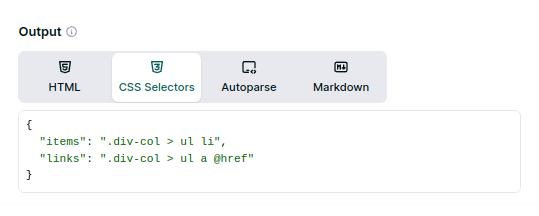
Before implementing your scraper at scale, test your CSS selectors using our Playground. The Playground shows you the extracted data in real-time and generates code in multiple programming languages for easy integration.
When to use each method
Choose your data extraction method based on your specific needs:
- CSS Selectors - Best for custom data extraction when you know exactly what elements you need. Returns clean JSON data with your own key names and structure.
- Output Filters - Ideal for extracting common data types like emails, phone numbers, images, and links. Perfect when you need standard web data without custom parsing.
- External Libraries - Perfect when you need complex parsing logic, custom data transformations, or when integrating with existing parsing workflows.
Further Reading
For more advanced CSS selector patterns and examples for complex web layouts, check out our Advanced CSS Selector Examples guide.